
Page Tree Sorter

Page Tree Sorter keeps your Confluence page tree in order by itself: you choose A–Z, Z–A or manual per page or folder, and new, renamed and moved pages fall into place.

Confluence Cloud Built on Atlassian Forge, no external hosts Free up to 10 users

A sort order for every branch of your tree

All screenshots show the app in the demo space Kilowatt Commons. Select a screenshot to see it at full size.

Choose how each level is sorted

Give any page or folder one of four modes: Inherited, A–Z, Z–A or Manual. The mode applies to its children, and every level below inherits it until a deeper setting takes over. The deepest setting always wins.

The dialog shows the effective mode and the page it comes from, so you never have to guess.
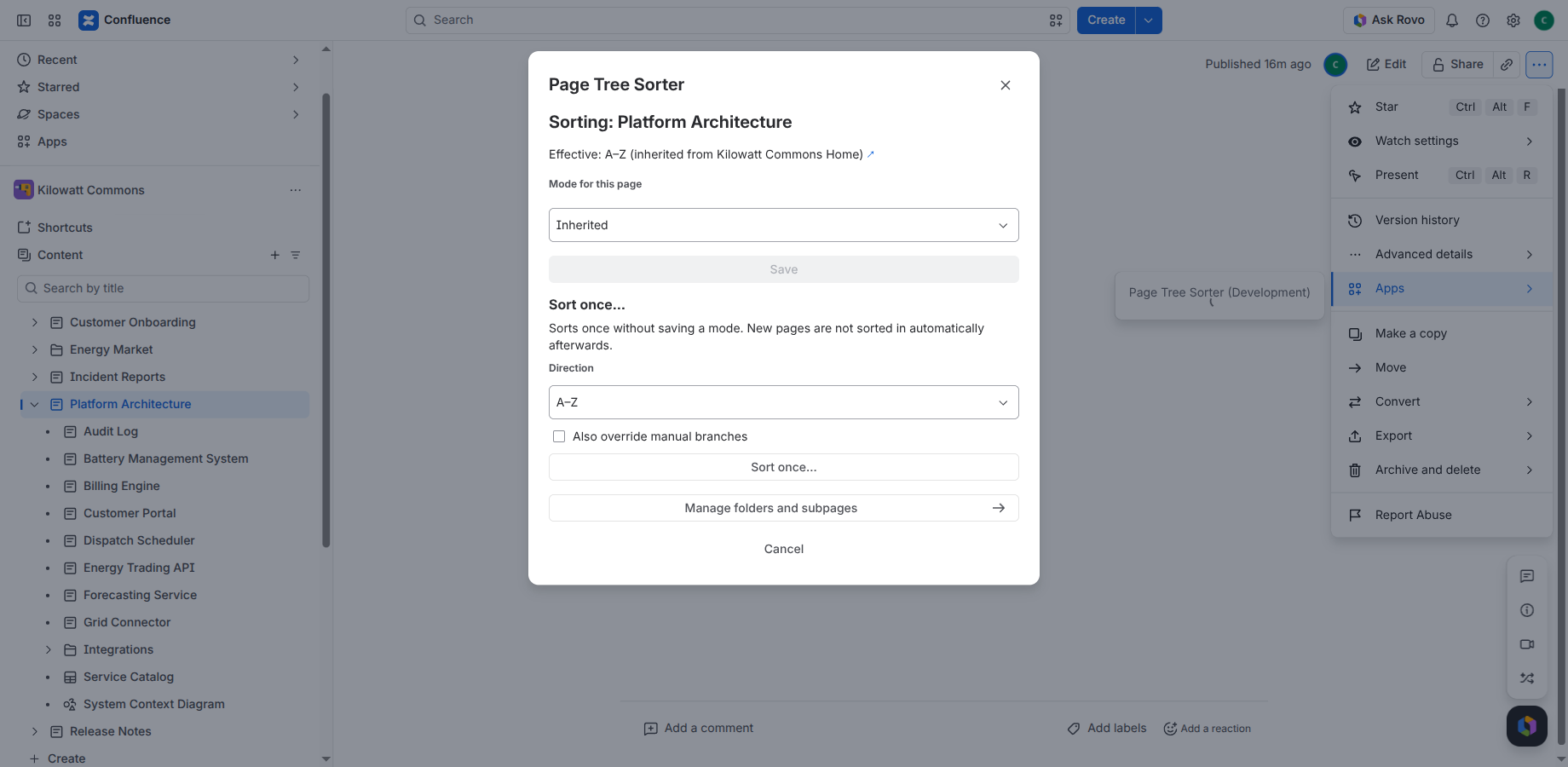
Page Tree Sorter dialog on the page Platform Architecture. It shows Effective: A–Z, inherited from Kilowatt Commons Home, a mode selector set to Inherited, and the Sort once section.

Different rules for different branches

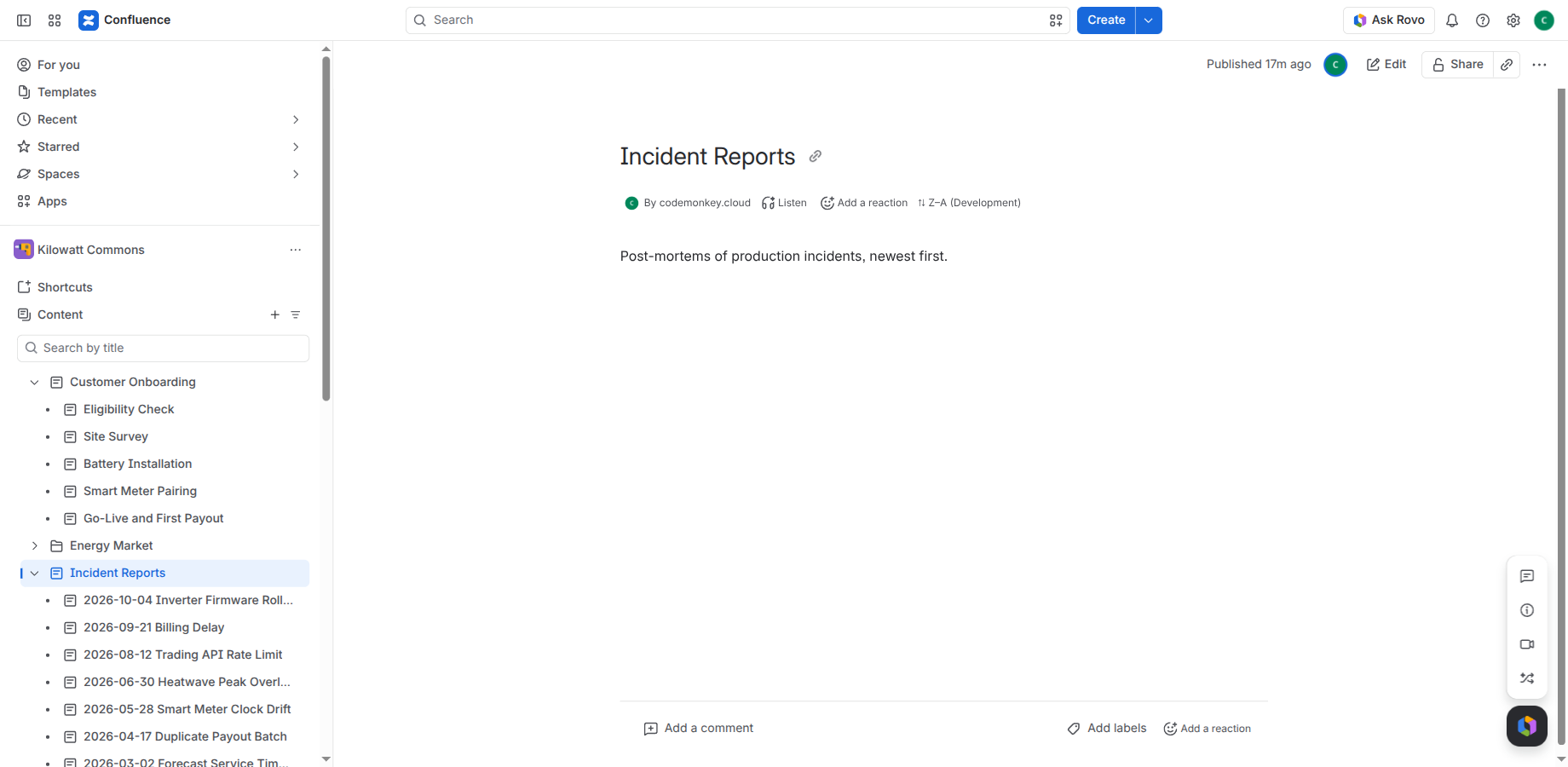
Keep a hand-curated process in its logical order right next to an incident log that lists the newest entry first. Here, Customer Onboarding is set to Manual and Incident Reports to Z–A.

The byline under the page title shows the mode at a glance: ⇅ A–Z, ⇅ Z–A, ⇅ ⋮⋮ for manual and ⇅ ↳ for inherited. Select it to open the dialog.

Confluence page tree: the onboarding steps under Customer Onboarding stay in process order, while the dated incident reports under Incident Reports are sorted newest first. The byline of Incident Reports shows Z–A.

New pages fall into place

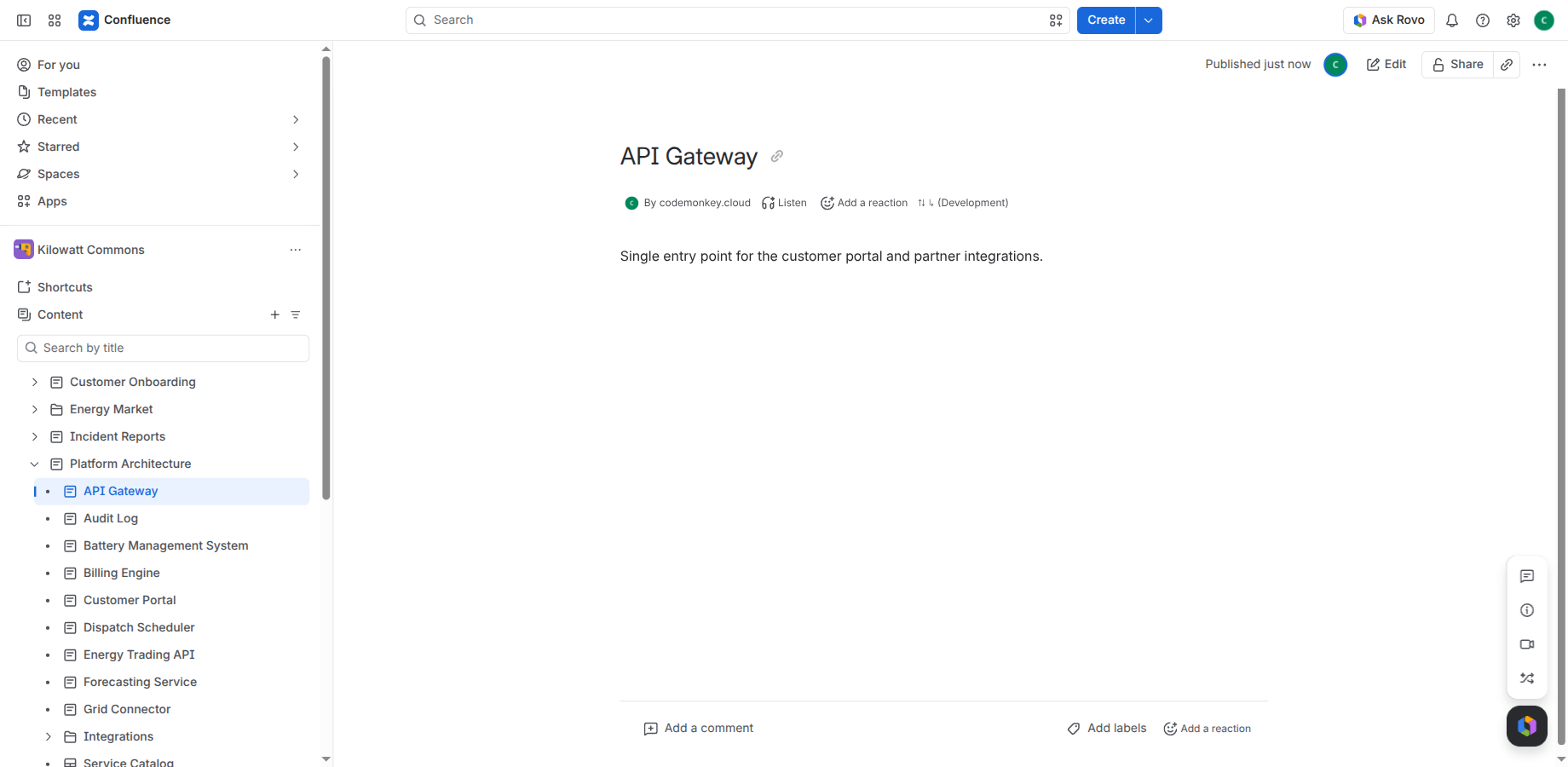
When a page is created, renamed or moved, the app sorts its level again, usually within seconds; Confluence can delay events by up to about three minutes. Editing a page and restoring one from the trash trigger a check too; if the order is right, nothing is moved. If someone drags a page out of order by hand, the order is restored.

Only the items that are out of place are moved. When you change a mode, every inheriting level below is sorted again.

The newly created page API Gateway appears at the top of Platform Architecture in the page tree, in alphabetical order before Audit Log.

The order people expect

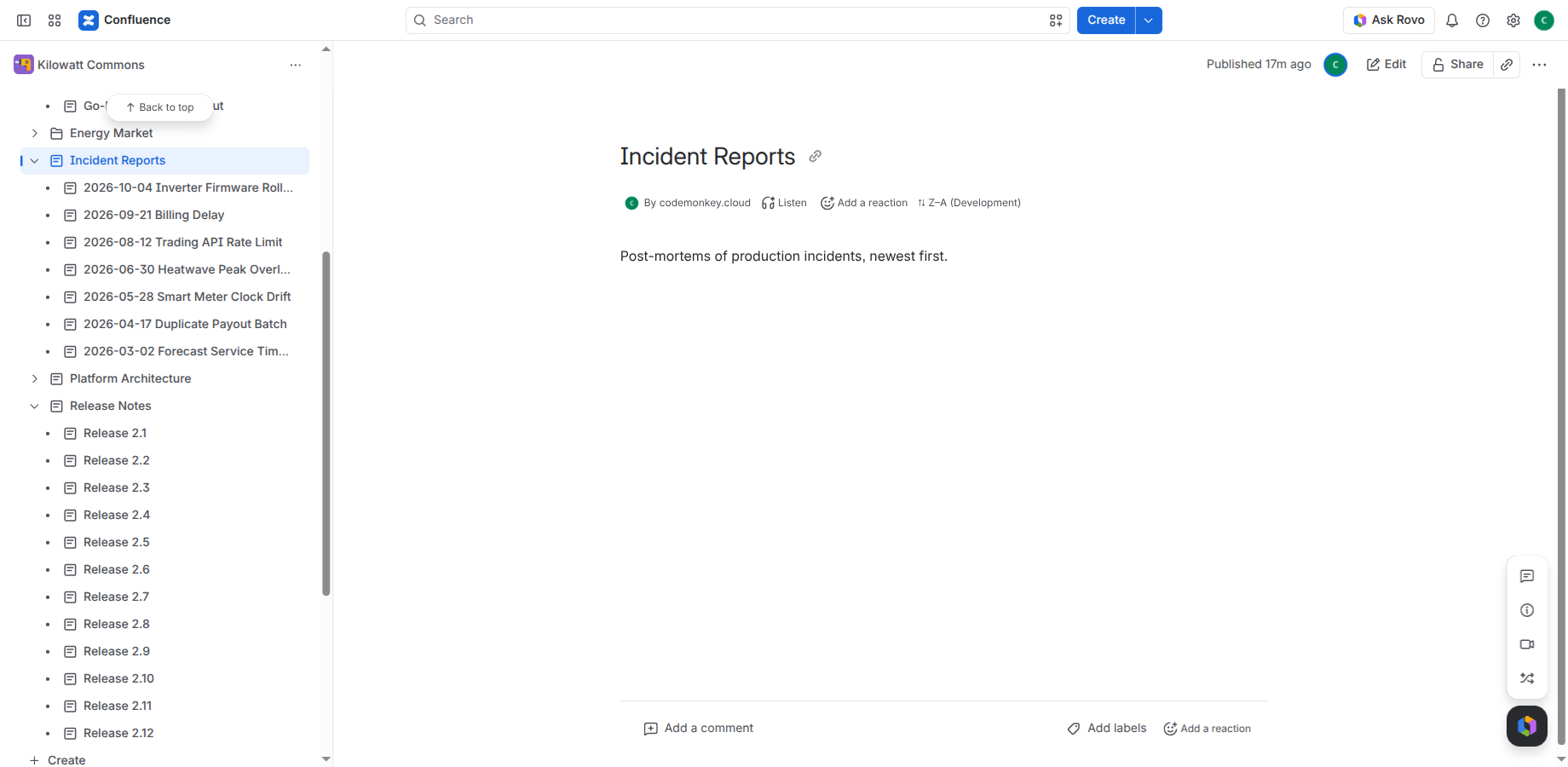
Numbers sort naturally: Release 2.9 comes before Release 2.10, and Chapter 2 before Chapter 10. Accented letters and umlauts sort with their base letter.

Pages, folders, whiteboards, databases and smart links are sorted together by title, so everything on a level follows one rule.

Page tree with Release Notes expanded: Release 2.1 to Release 2.9 are followed by Release 2.10, 2.11 and 2.12. Above, Incident Reports is sorted Z–A with the newest date first.

One place for the whole space

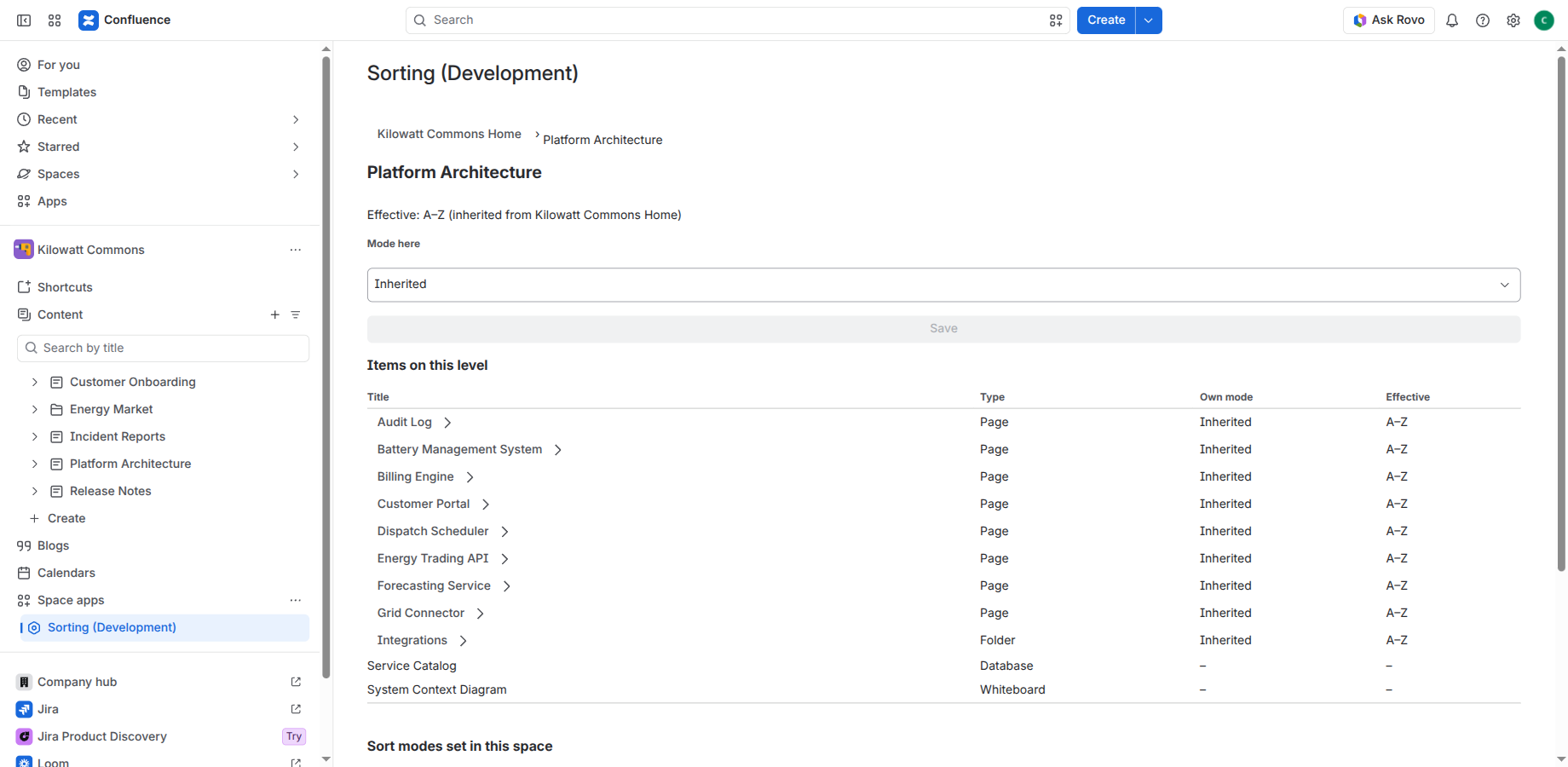
The Sorting page under Space apps in the space navigation lets you browse the tree level by level. For each item you see its type, its own mode and the effective mode.

Confluence has no page menu for folders, so this is where you set the mode of a folder. Pages work here too.

The Sorting space page on the level Platform Architecture: a mode selector for this level and a table of its items with title, type (page, folder, database, whiteboard), own mode and effective mode.

Every setting at a glance

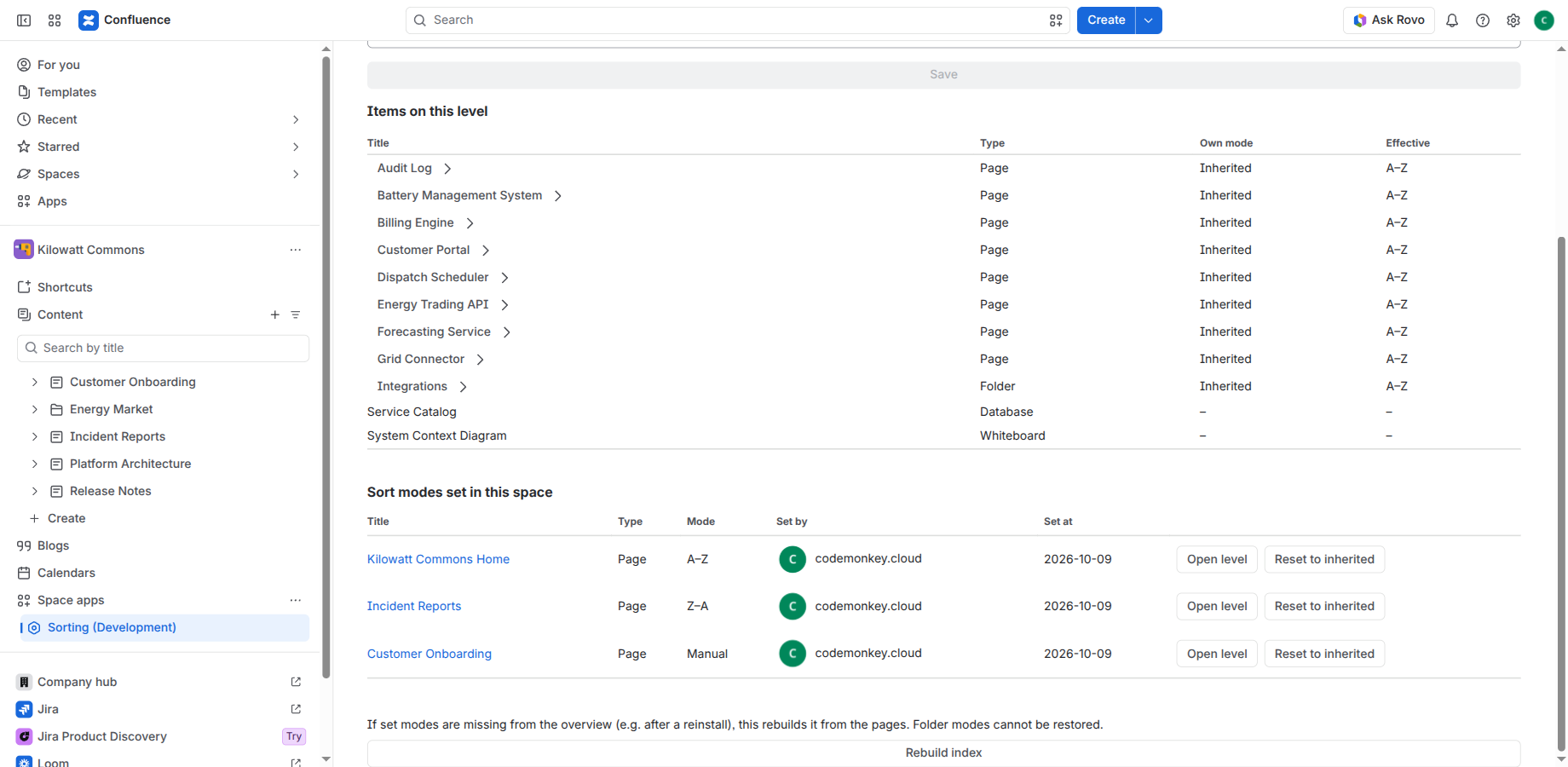
The same page lists every mode set in the space, with who set it and when. Open the level from there or reset it to inherited with one click.

Rebuild index recreates this overview from the pages, for example after a reinstall.

Table Sort modes set in this space: Kilowatt Commons Home A–Z, Incident Reports Z–A and Customer Onboarding Manual, each with the person who set it, the date and the buttons Open level and Reset to inherited.

Tidy up an existing tree once

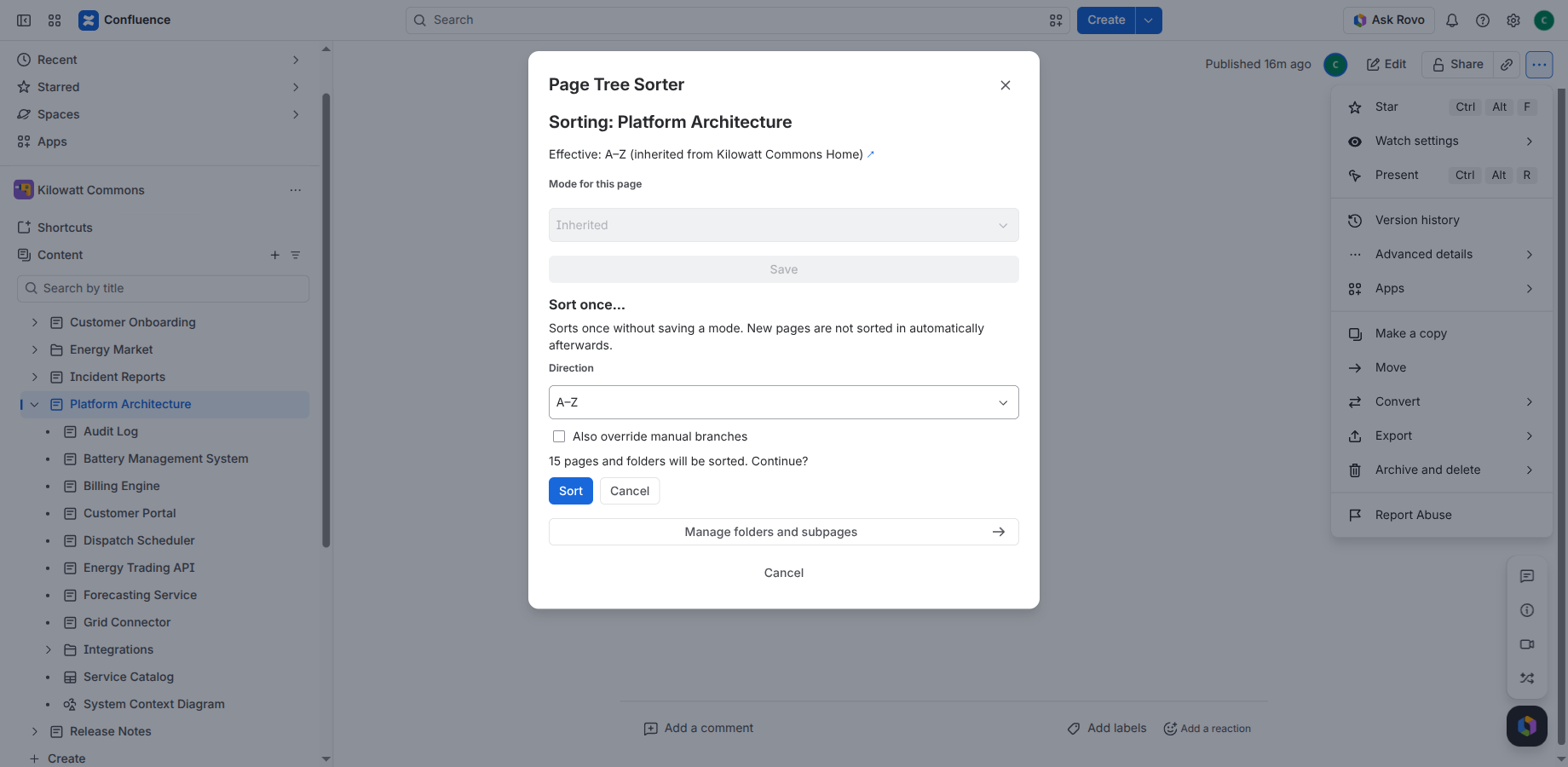
Sort once sorts a page and its whole subtree in one run, without saving a mode. Before it starts, it shows how many pages and folders are below the page, as far as you can see them, including branches set to Manual. It starts only from a page’s dialog, not from a folder.

The standard run leaves branches set to Manual alone. Hardcore also sorts those branches and is available to space admins only. A standard run by an editor moves the whole subtree with the app’s permissions; only edit permission on the start page is checked.

Sort once in the dialog with direction A–Z and the option Also override manual branches. The confirmation reads: 15 pages and folders will be sorted. Continue?

Get started

  1. Install the app. Page Tree Sorter is coming soon to the Atlassian Marketplace. Once listed, a site admin installs it (in Confluence: Apps, then Explore more apps). Nothing is sorted until a mode is set.
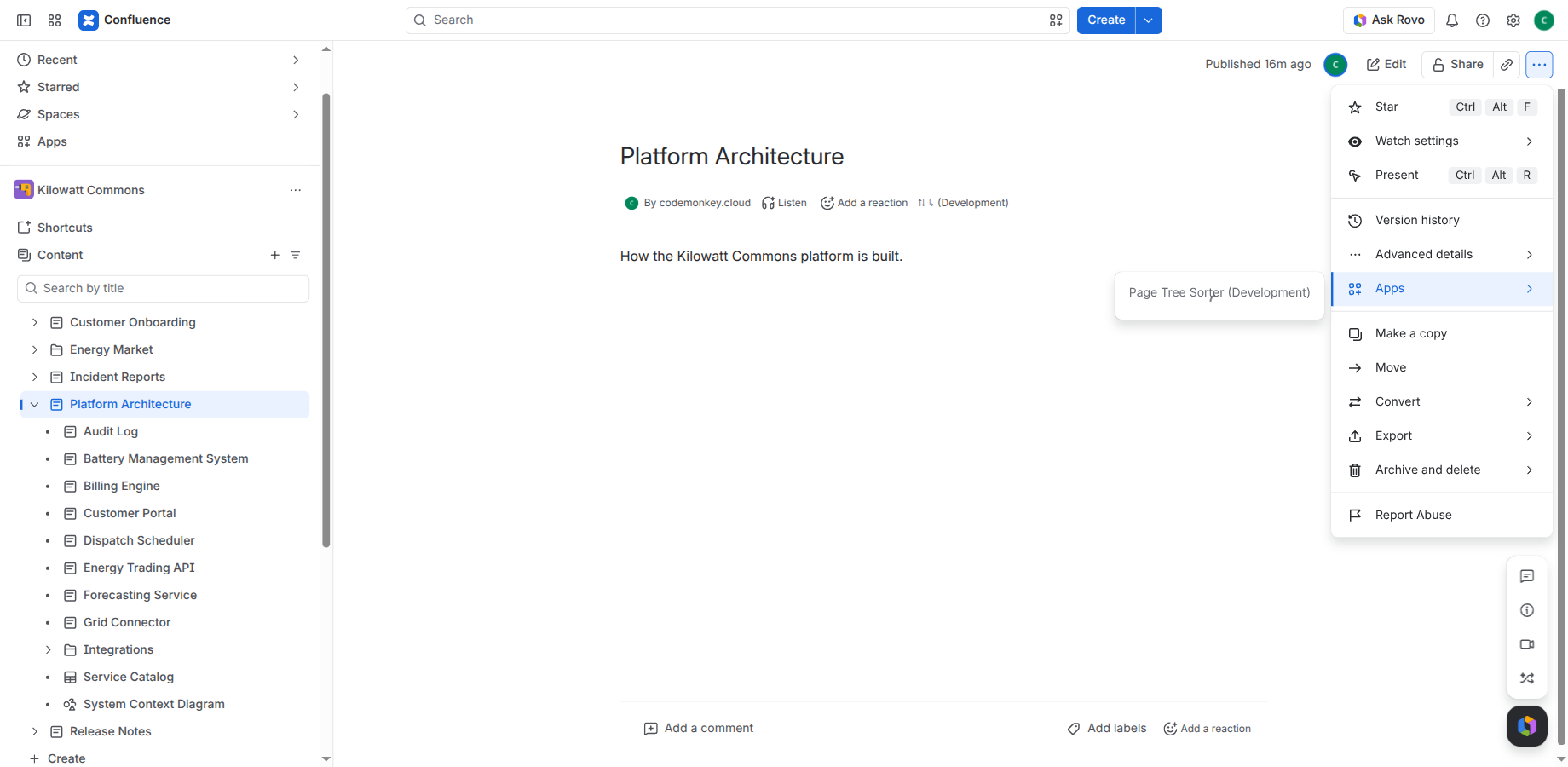
  2. Open the page menu. On any page, open •••, then Apps and Page Tree Sorter. You can also select the ⇅ entry in the byline under the page title.
  3. Set a mode. Choose A–Z, Z–A or Manual and save. To sort a whole space, set the mode on the space home page. For folders, use the Sorting page under Space apps.

All details, from inheritance to the Sorting space page, are in the documentation: Read the documentation →

The page menu of the page Platform Architecture is open, with Apps selected and the entry Page Tree Sorter.
The app opens from the page menu under Apps.

Who can do what

ActionWho
Set or reset a modeSpace admins
Sort once (standard)Anyone who can edit the page
Sort once with hardcoreSpace admins

Permissions are checked on the server, not only in the interface.

Known limitations

Privacy and security

Page Tree Sorter is built on Atlassian Forge and uses no external hosts. It sends no data to external servers and neither reads nor stores page content. It keeps only what it needs to sort: page and folder IDs, titles for the overview, modes and the account ID of the person who set a mode. Details are in the privacy policy.

License and support

Page Tree Sorter is a paid app, coming soon to the Atlassian Marketplace, and free for sites with up to 10 users. Without an active license, sorting pauses and all settings are kept. The app is provided under the terms of use.

Use the contact form, in English or German. You get a first response within 2 business days (Monday to Friday, CET/CEST); if sorting has stopped working completely, within 1 business day. Please include your site URL, the page and what you expected.